Less context switching
The integration adds local controls to compatible Salesforce pages. It does not replace Lightning; it puts the next useful action beside the log, deployment, or record you are reviewing.

Reach logs, traces, deployments, and SFOC tools from the Salesforce pages where you already work. Every capability is optional and enabled separately.
The integration adds local controls to compatible Salesforce pages. It does not replace Lightning; it puts the next useful action beside the log, deployment, or record you are reviewing.
In Settings, open Salesforce UI Integration, enable the master switch, and turn on only the capabilities you need. Data actions require a saved org and an active session.
From a visual enhancement to an action that reads Salesforce, each module checks its own requirements before appearing.
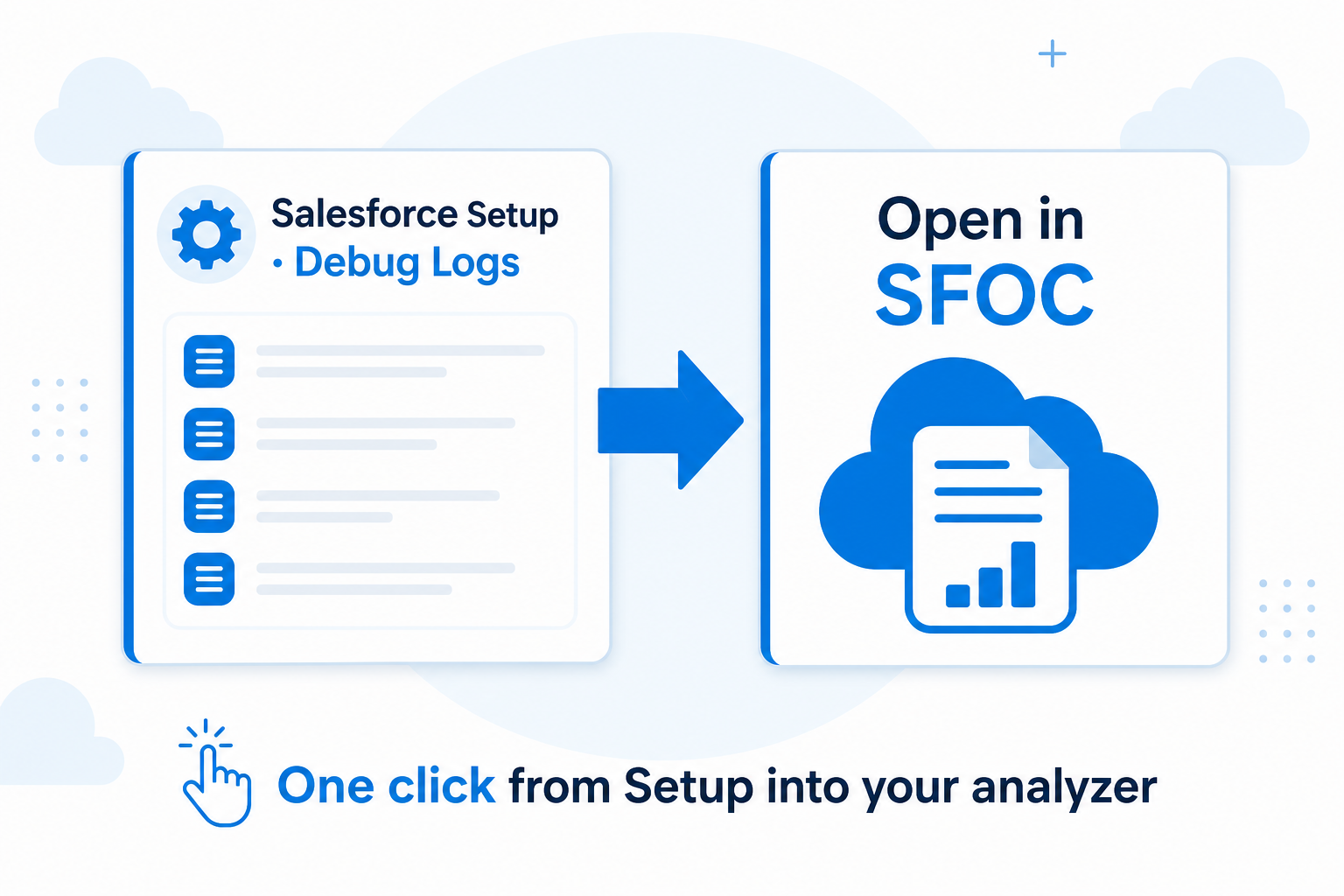
Open a native Setup log in the Apex Log Viewer and optionally place Debug Logs above User Trace Flags.
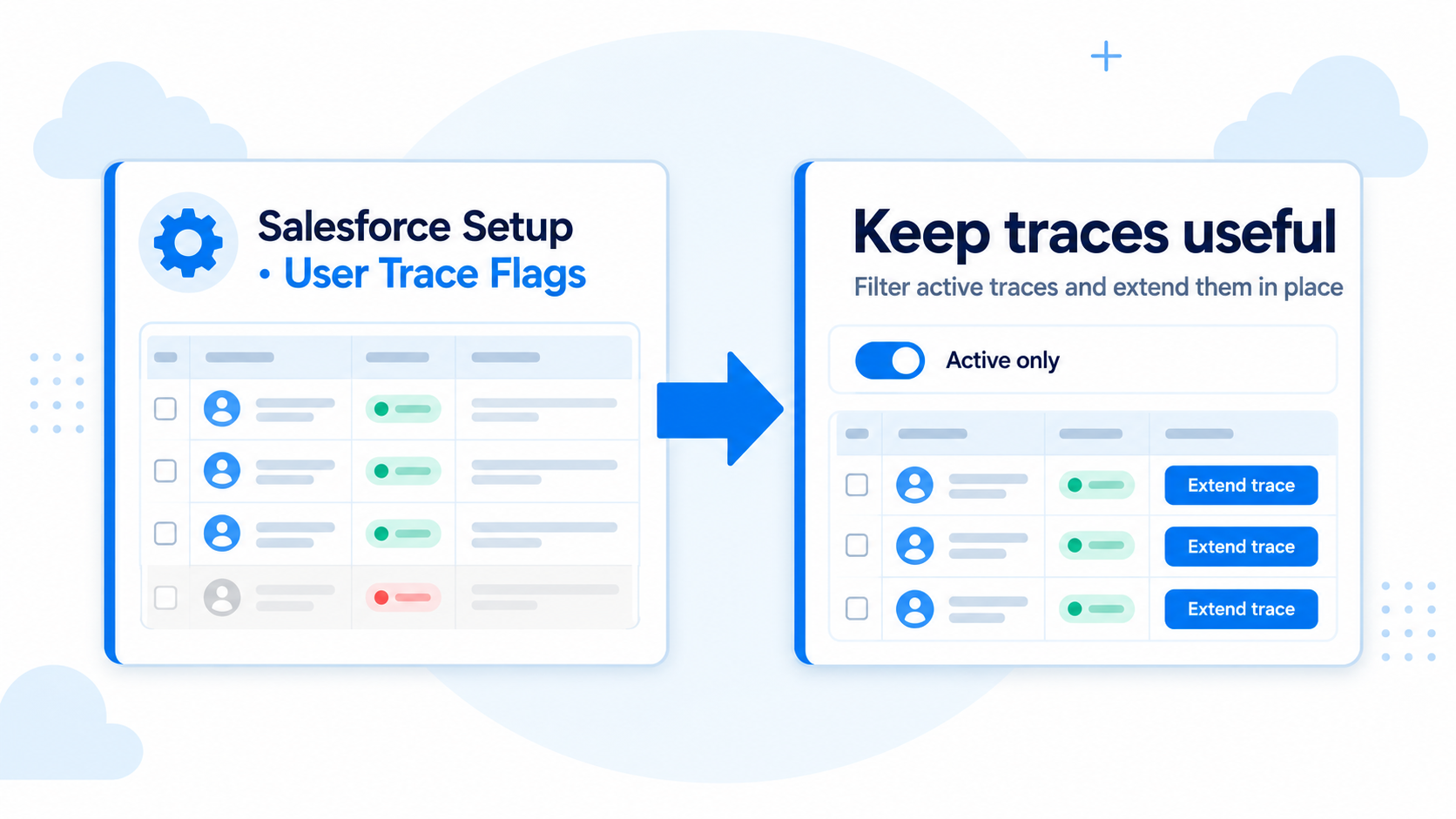
Focus on active or recently expired traces and extend or reactivate an eligible trace without leaving Setup.
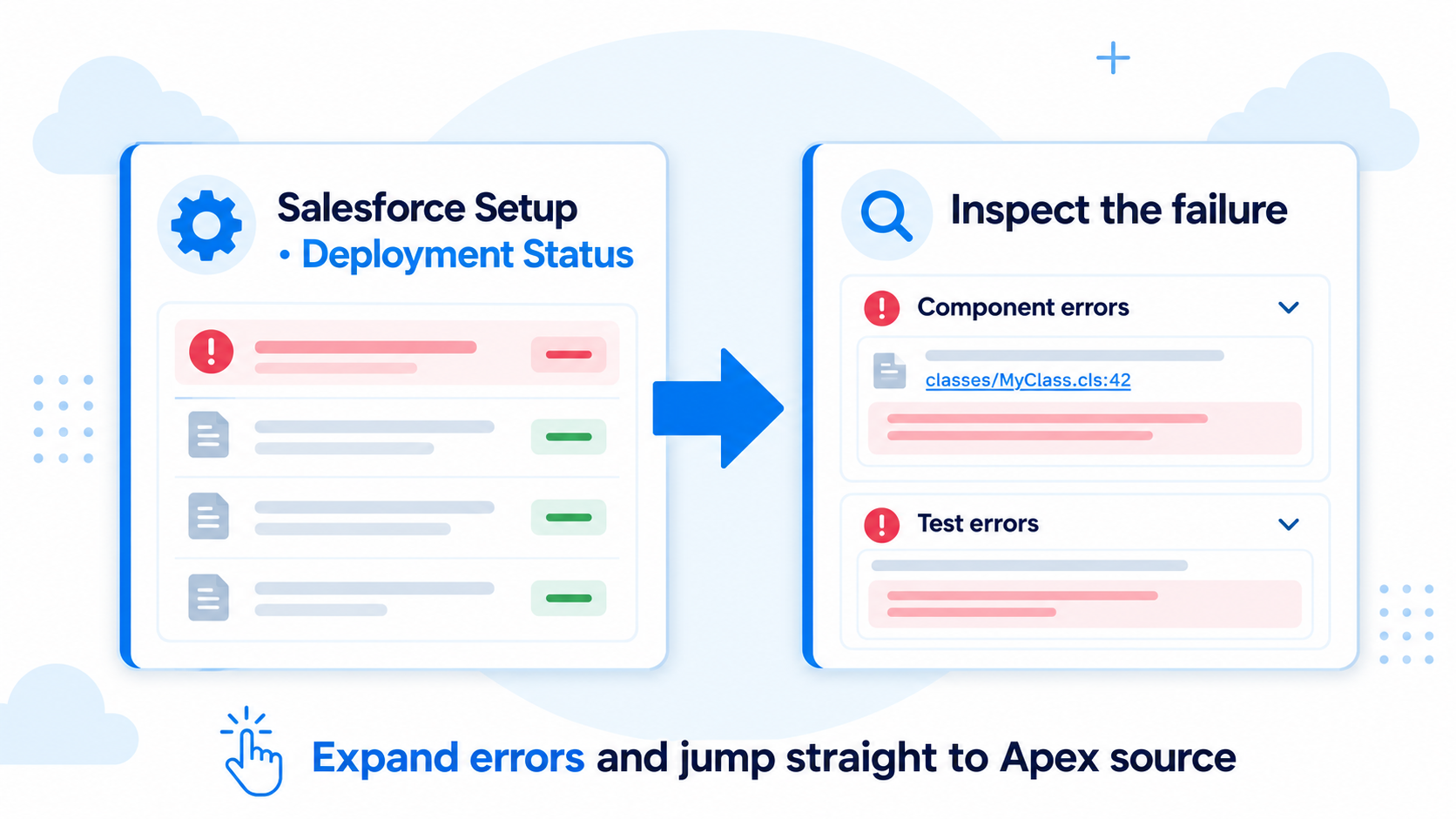
Expand component and test failures on the status page instead of moving through several screens.
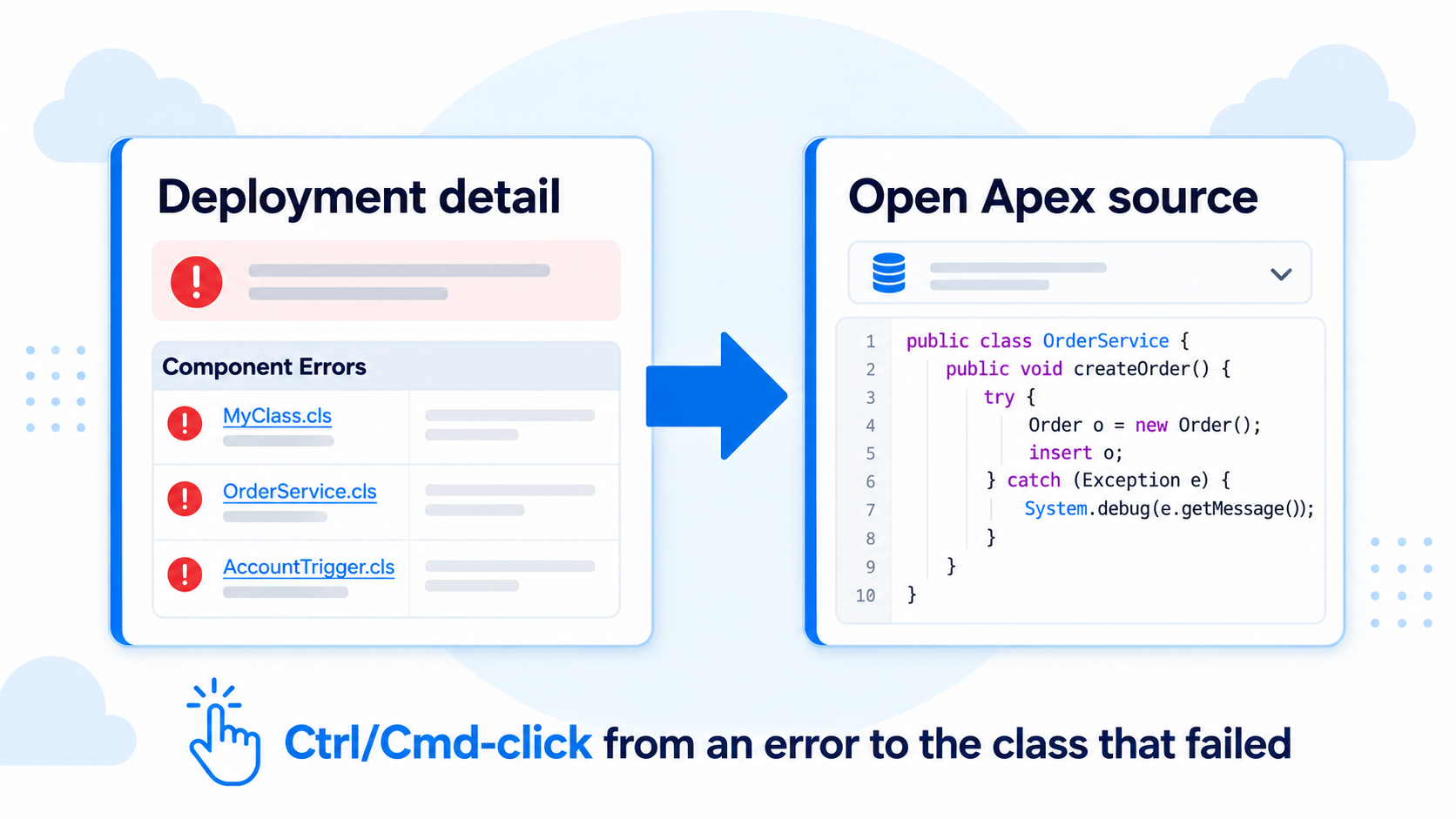
Choose an org and Ctrl/Cmd-click a class, test, or stack trace to open the source in SFOC.
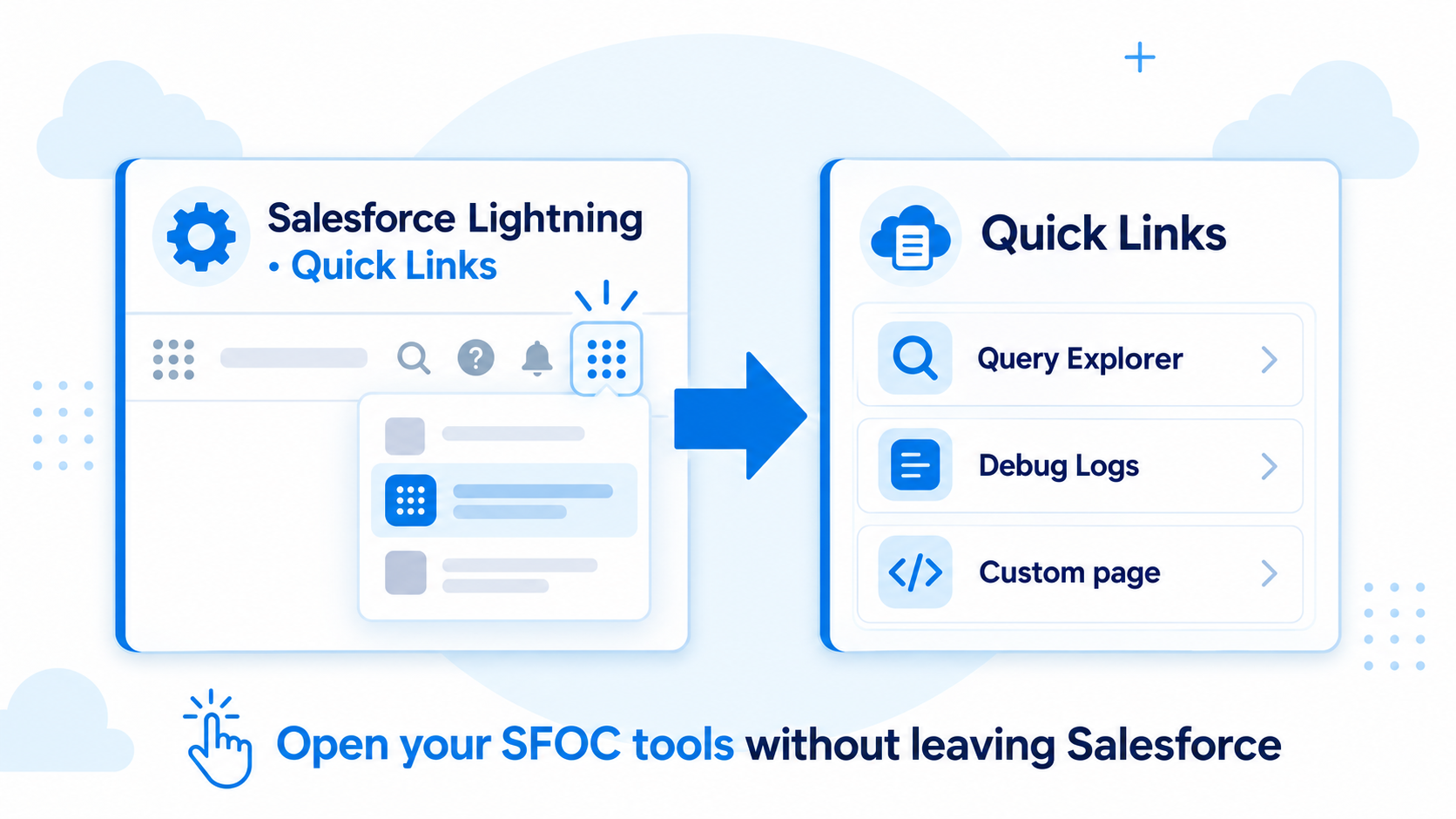
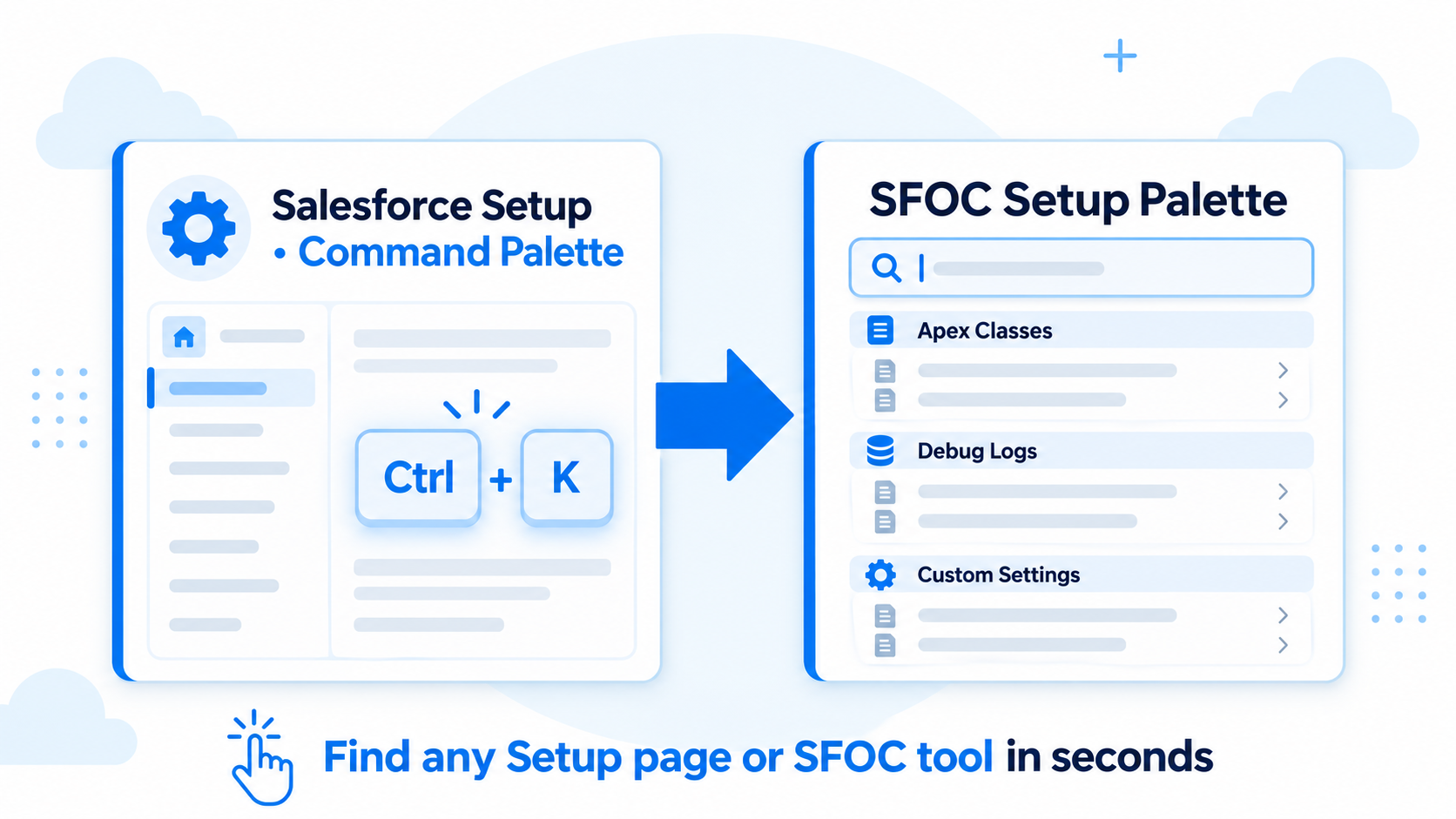
Open tools, same-org paths, scripts, and Setup pages from the Lightning header or Ctrl+K.
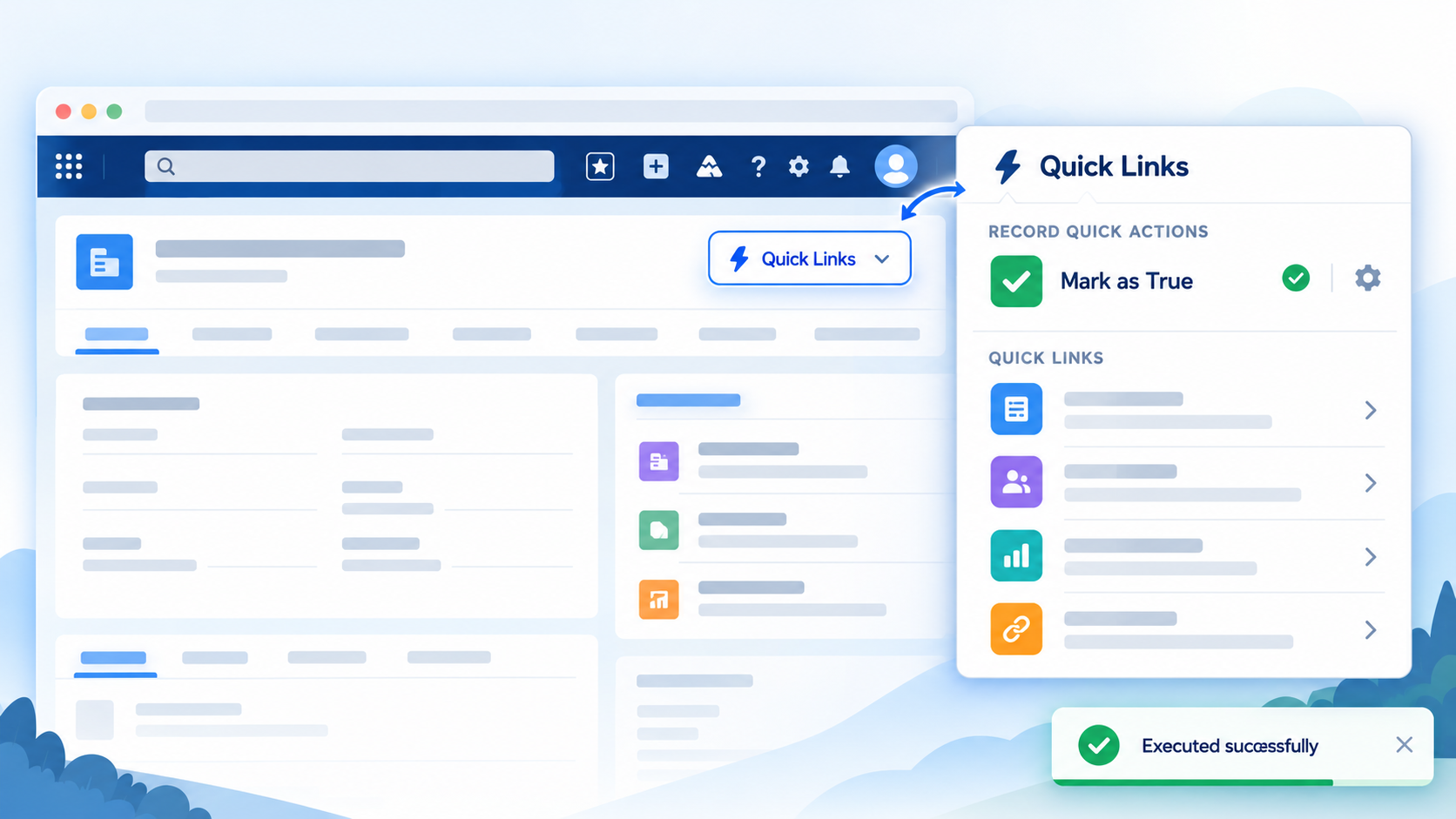
Run configured actions on the current or a related record, show progress, and refresh the view when complete.
The master switch and every module are opt-in; the host removes controls when they no longer apply.
Official illustrations from the repository, showing how each entry point connects Salesforce to SFOC.
Images and functional descriptions are based on the project's public repository ↗.
The generated content script validates the page, frame, configuration, and context before mounting isolated injectors. It observes Lightning re-renders and cleans up the UI when a capability is disabled.